
A bulk-print tool for Canvas. It puts every student's work on an assignment or New Quiz into one PDF, one student per page, ready to print as one job or grade on screen. Everything runs in your browser. Student work never leaves your computer.
- New Quiz essaysCanvas has no built-in way to print New Quiz essay answers or save them as a PDF. This is how you get them onto paper, or into one PDF to grade.
- Uploaded papersInstead of opening each student's file and printing it one at a time, download every submission at once, drop it here, and print the whole stack.
STEP 1 Get the file from Canvas
Which kind of assignment are you printing? Pick one and follow the pictures.
-
Open the quiz in CanvasGo to your course, then Quizzes or Assignments, and click the quiz. New Quizzes have a rocket icon. The quiz opens with a row of tabs across the top: Build, Settings, Moderate, Reports, Exports.
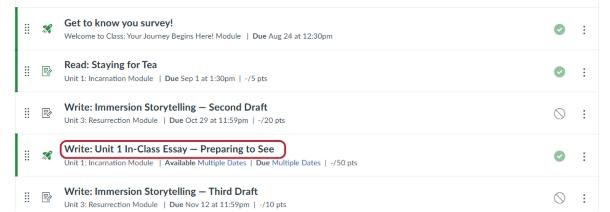
Click the quiz's name. The rocket icon means it's a New Quiz. -
Click Reports, then Generate Report under Student AnalysisClick the Reports tab (1). In the Student Analysis box, click Generate Report (2). Wait a few seconds until the date under “Data Last Updated” changes to right now. That makes sure every student who has finished is included.
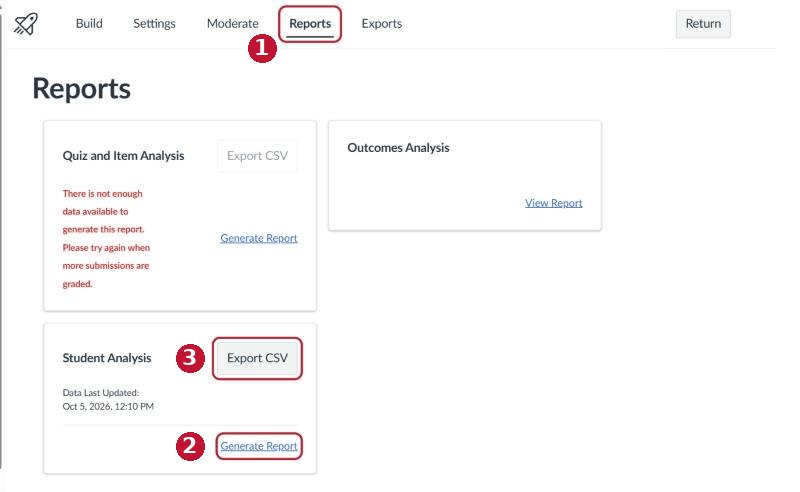
The Reports tab of a New Quiz. Ignore the other boxes. -
Click Export CSVIn the same Student Analysis box, click Export CSV (3). A file called
student_analysis.csvlands in your Downloads folder. You don't need to open it. Come back to this page.
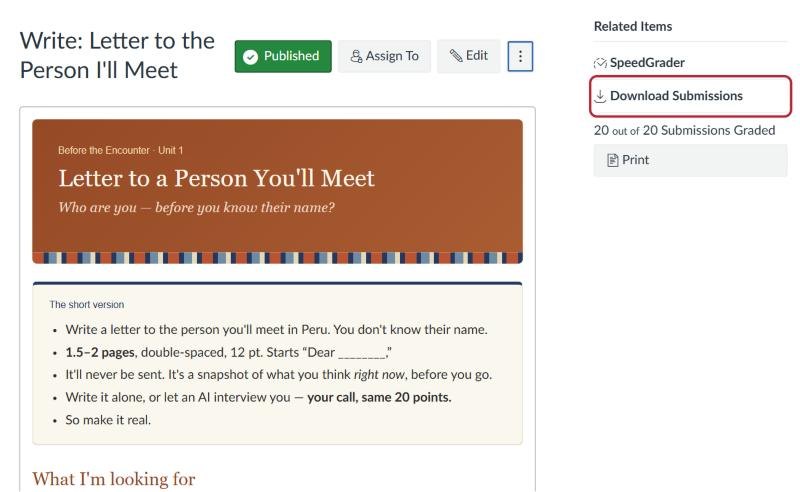
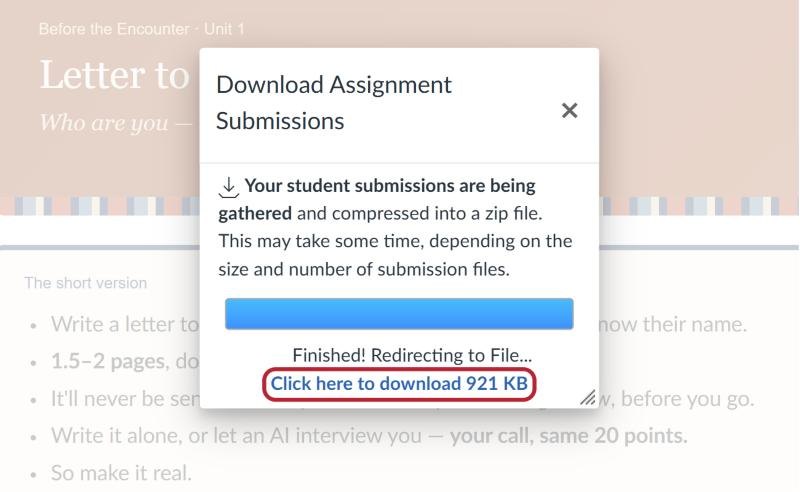
STEP 2 Drop the file here
Drag the file from your Downloads folder onto the box, or click the box and choose it.
student_analysis.csv or the .zip hereWithin a few seconds every student appears in the list below, with how many pages each one will take. Check that nobody is missing. Print by hand means that one file needs to be printed on its own.
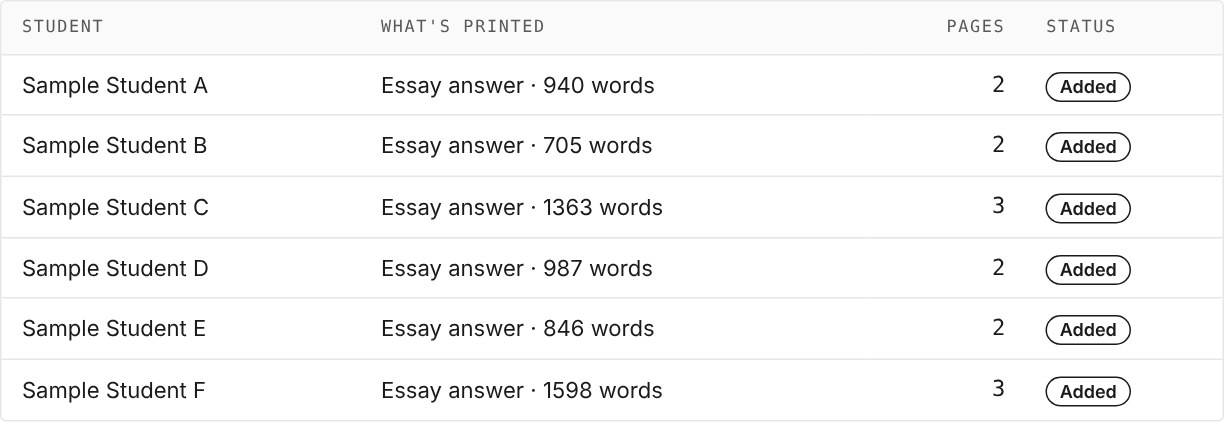
| Student | What's printed | Pages | Status |
|---|---|---|---|
| Your students will be listed here after you drop the file. | |||
STEP 3 Print
Click Print. Your printer window opens with every student's work in it. Pick your printer and click Print.
Double-sided is on. In the printer window, make sure Two-sided (sometimes called Print on both sides) is turned on. In Chrome it's under More settings. Want single-sided? Uncheck Print double-sided in Step 2 first, so there are no blank backs.
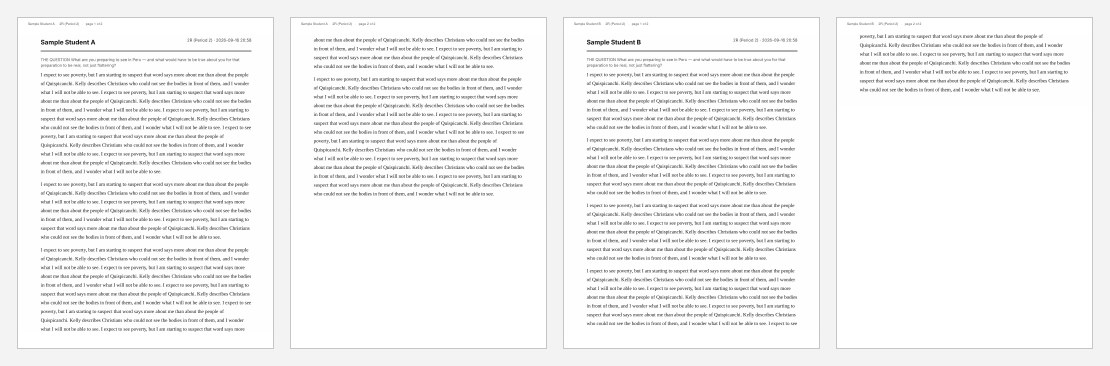
- New Quizzes: only essay question answers are printed. Multiple choice and other question types are left out. If a quiz has more than one essay, each answer is labeled with its question number (Question 2, Question 5…), in quiz order, one after another under that student's name.
- Assignments: Word documents, PDFs, photos, and text typed into Canvas all print. Anything else (a Pages file, a Google link, a video) is listed as Print by hand so nobody gets missed.
- Pictures that students pasted inside a New Quiz essay don't come through. The writing does.
- Double-sided: when a student's work ends on the front of a sheet, the back is left blank so the next student starts fresh. That's why you may see a few blank pages in the printer window.
- Grading anonymously: Print Pack replaces the names it adds (the heading and the label on every page) with paper numbers. It can't remove a name a student typed into their own work, like the first line of a Word document. Ask students to leave their names off, or flip through before you hand papers out.
- Word documents are redrawn in your browser, so a font you don't have may look slightly different. The words and page order are the same.