
Raider Observation Digest
Regis Jesuit · Educational Technology
The form lists 41 teaching elements — a menu of what someone might notice in a classroom, not a checklist anyone works through. Your observer marks what they saw; the rest stays blank. This brings the marked ones to the front, with everything they wrote, onto one page you can read and print.
Your report never leaves your computer. This reads the report already open on your screen and rearranges it. No accounts, no login, no cookies, no personal data. It sends nothing anywhere, saves nothing, and cannot change your observation. Close it and your report is exactly as it was.
Once. About twenty seconds, and nothing can break.
Chrome gives it a plain globe icon and may shorten the name. Right-click it and choose Edit to rename it — it works the same.
Drag me up to the bookmarks bar — clicking me here does nothing.
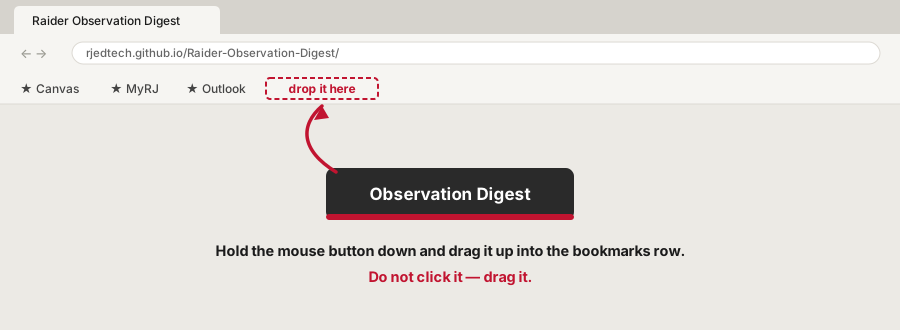
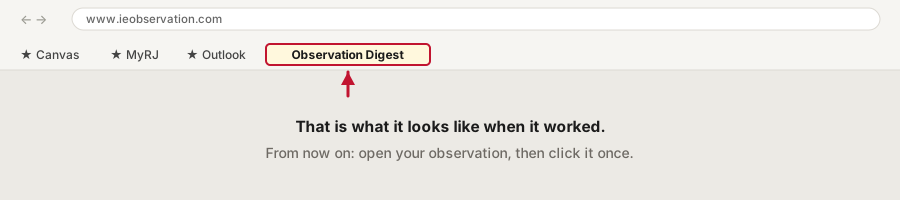
It is hidden. Hold Ctrl and Shift and press B and it appears. (On a Mac: ⌘ Shift B.) The same keys hide it again afterwards if you would rather not keep it.
Use this instead. It gets you to the same place.
Observation Digest. Click in the
URL box and press Ctrl V to paste.Loading…
Every observation anyone has ever done on you is still in there. Any of these gets you back to one.
A. Search your email.
Search Outlook for iObservation. Fastest route by a mile, and the link lands you straight on the report.
B. Let the digest find it.
Anywhere on the iObservation site, click Observation Digest. When it cannot see a report it offers a button to all my observations. Press that.
C. Start at your iObservation home page.
Go to ieobservation.com and find the card headed Observations conducted on me — it lists every observation anyone has ever done on you, going back years. Click View on that card, then View on the row you want.
The left-hand menu is not the way in — Observations › Conduct Observation is for people who observe others, not for finding your own.
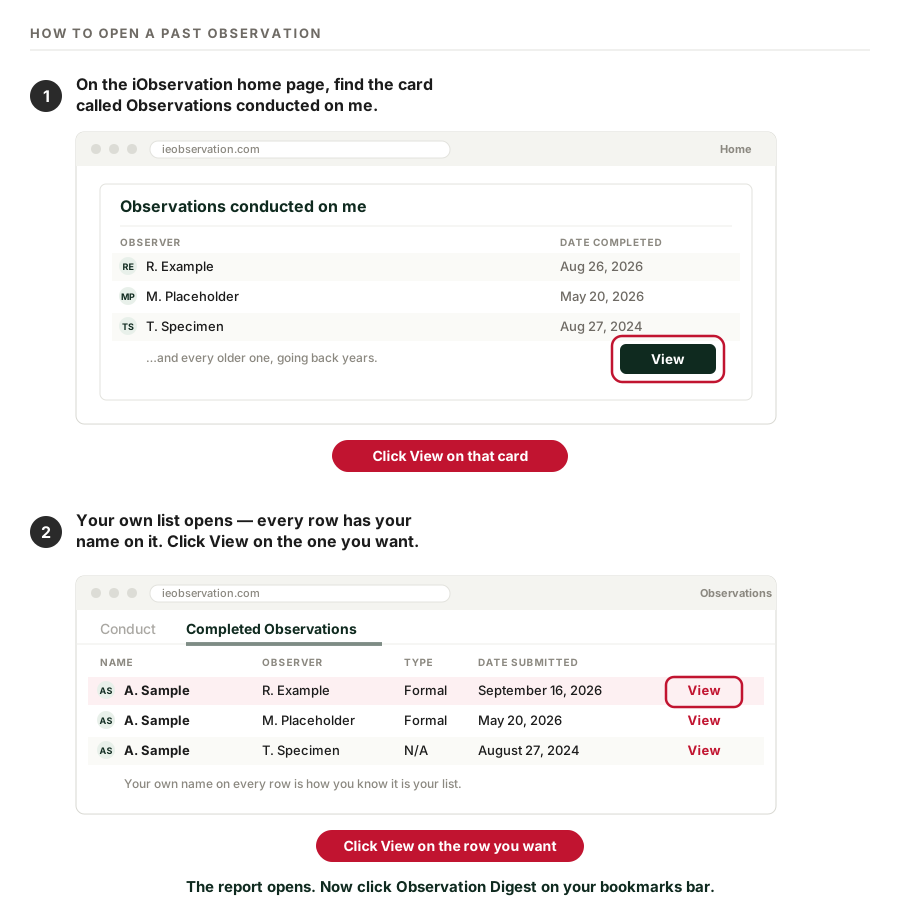
iObservation's home page is built from fixed-height cards that do not grow with your browser. At 100% zoom on a laptop, the Observations conducted on me card shows about two rows and clips the date column — so it can look like you have had two observations when you have had ten. Nothing is missing; it is folded up.
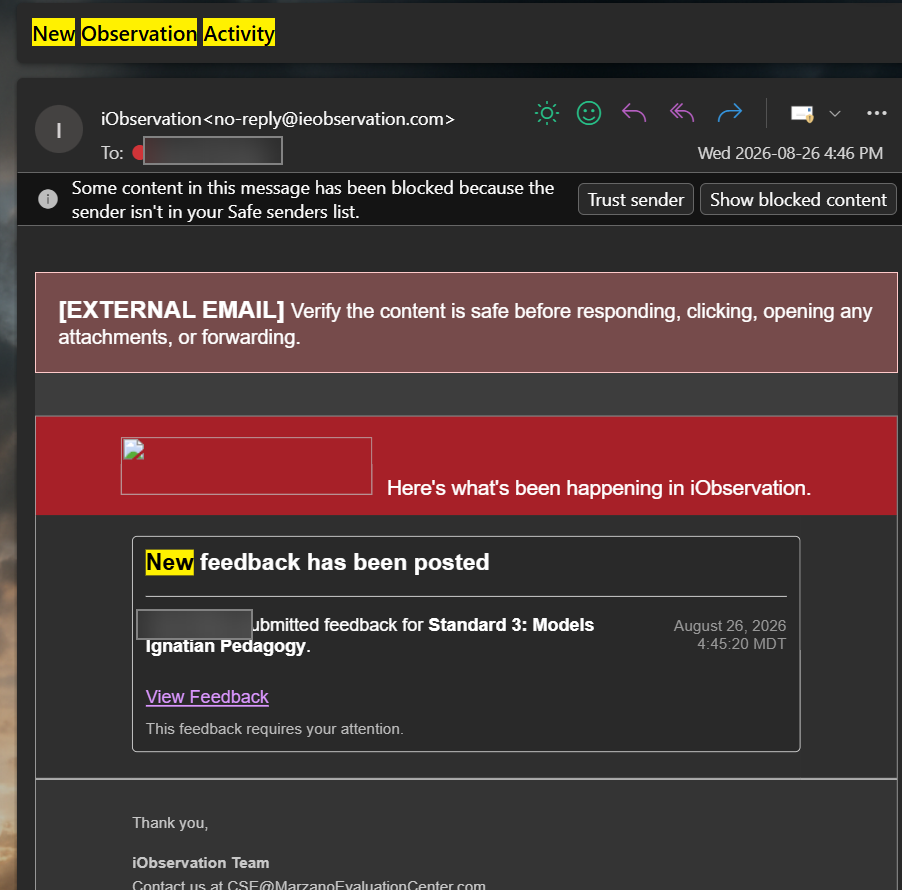
The email looks half-broken, and that is normal. Outlook blocks the iObservation logo because the sender isn't on your safe list, so you get an empty box where a banner should be. The View Feedback link still works. You can press Trust sender if the missing image bothers you.
If nothing happens, you are probably not on a completed observation page yet, or it hasn't finished loading. Wait a moment and click again. If it still does nothing, the report page may have changed — tell Educational Technology and it gets fixed.
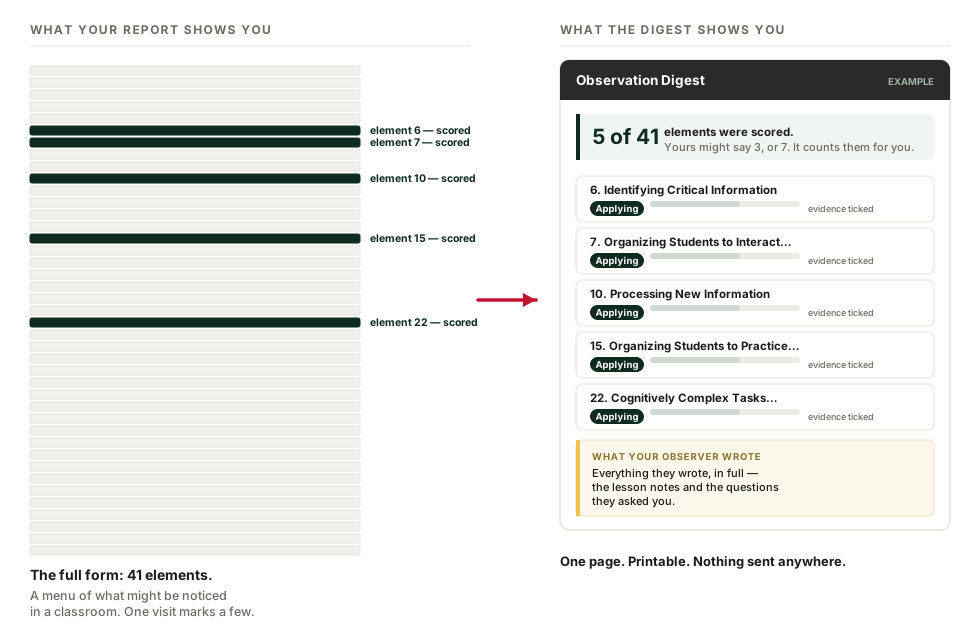
Because an observer watching one class period can only see a handful of the 41 things the form lists. Scoring a few and leaving the rest blank is the instrument working normally. A blank element is not a zero and not a gap in your teaching — it means it wasn't what this visit was looking at.
Each scored element gets one of five levels, from Not Using up through Beginning, Developing, Applying, and Innovating. The digest shows the ladder with your level filled in. The framework's full wording for each level is behind the View Scale button on the original report — this tool deliberately doesn't paraphrase it.
Often not. Scores tend to cluster, which means they carry less information than their position at the top of the report suggests. The part that tells you something is what your observer wrote in their own words — especially any questions they asked. The digest puts that at the bottom, in full, where it's easy to find.
No. Nothing is logged, sent, or recorded anywhere. The tool runs inside your own browser on a page you already have open. There is nothing to see from the other side.
Reading the report is the easy half. The Professional Development course has a page on the harder half — answering your observer's questions, taking one element up a rung instead of five, and reading an observation next to what your students said.